
After successfully creating this first application, it’s time to move forward and dive into workflows. The goal of the next application is to create a TODO list which can be modified by end users.
Here’s some sample data:
    BEGIN;

    CREATE ROLE todo_owner LOGIN;
    GRANT todo_owner TO authenticator;

    CREATE SCHEMA todo AUTHORIZATION todo_owner;

    CREATE TABLE todo.t_todo
    (
        id           	serial   	PRIMARY KEY,
        tstamp       	date     	DEFAULT now(),
        todo_item    	text     	NOT NULL,
        status       	text
    );

    INSERT INTO todo.t_todo (tstamp, todo_item, status)
    VALUES
     ('2021-03-04',' Do the laundry', 'created'),
     ('2021-03-06',' Cut the grass', 'accepted'),
     ('2021-03-09',' Eat a steak', 'success'),
     ('2021-03-12',' Slaughter a chicken', 'rejected');

    COMMIT;
For the sake of simplicity, the TODO list consists of just one table. What is noteworthy here is the last column: The status informs us about the state of an object. A task might have succeeded, failed or it might have been rejected.
You can both enable workflows and configure them in the model builder:
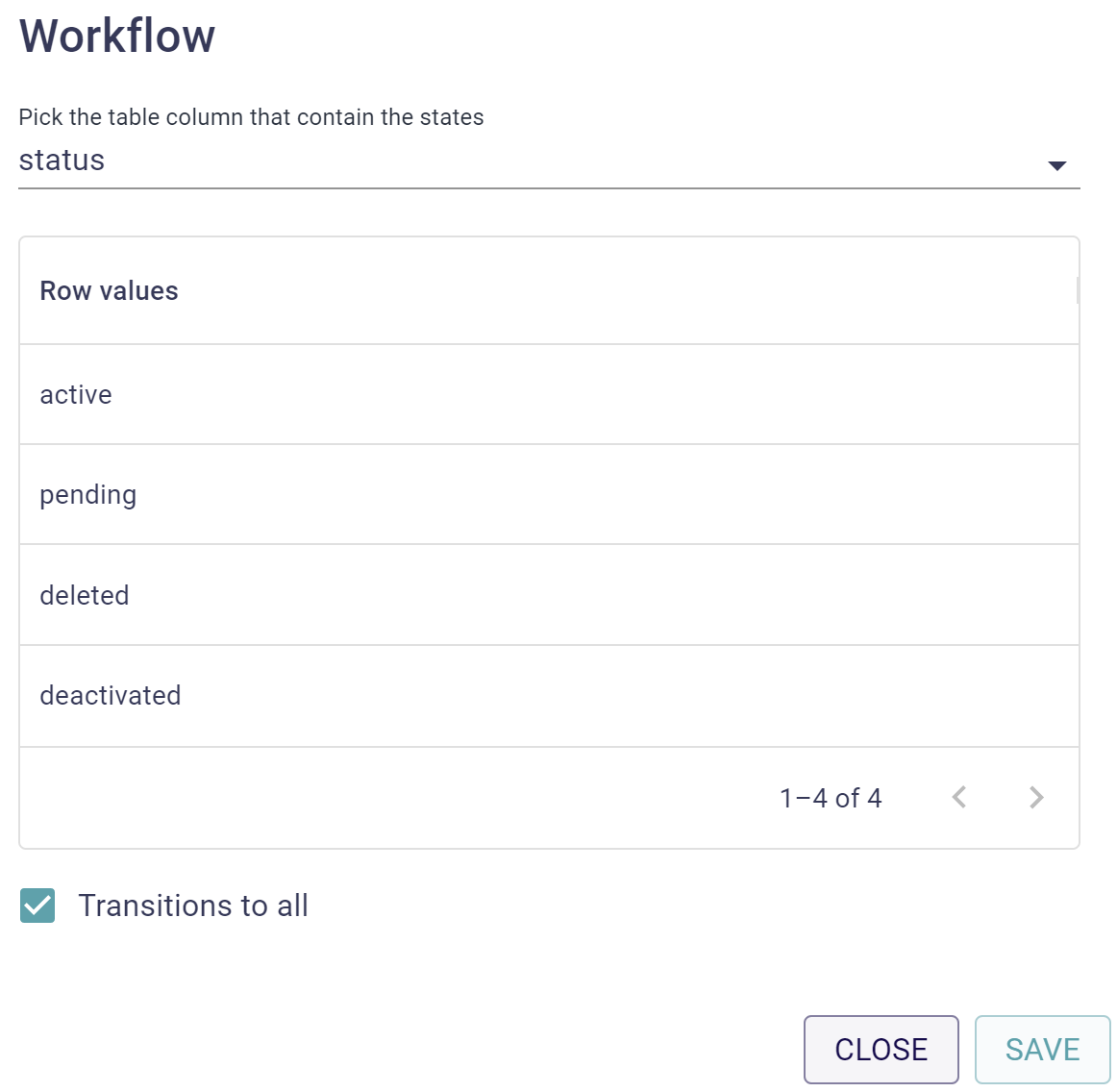
The workflow can easily be drawn using drag-and-drop functionality.
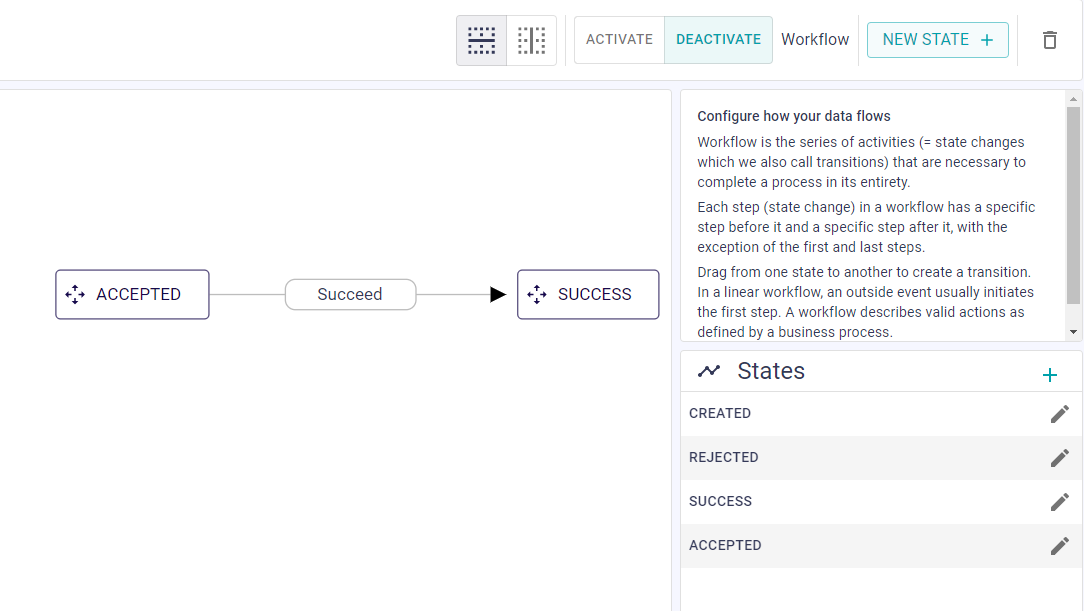
The end result will reflect the changes and allow only the changes defined in the workflow.
Finally, create the query permissions and generate the application:
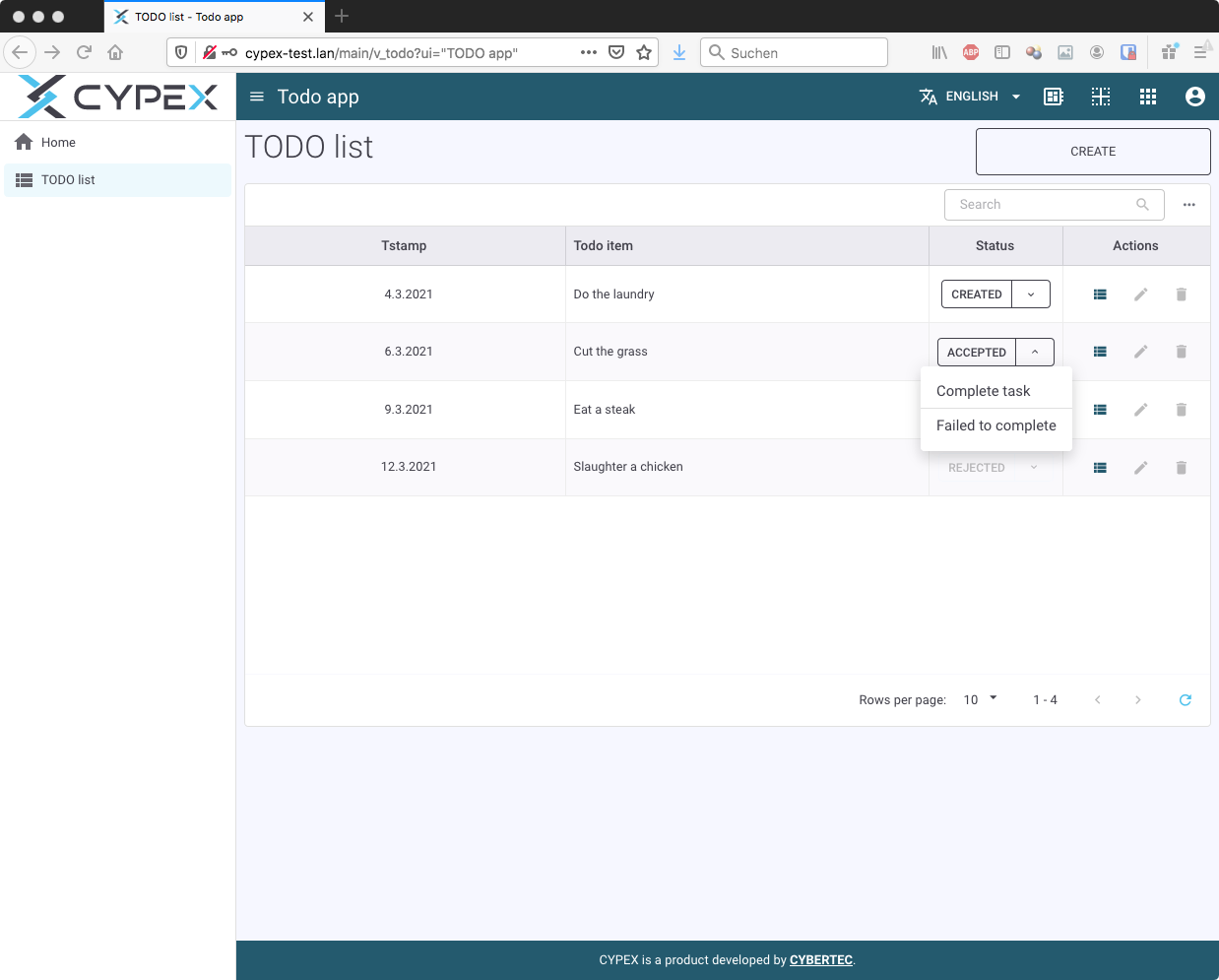
The application is rendered normally. The magic is in the state or status column: CYPEX has generated a dropdown which allows us to make changes.
Note that you can’t just select any value from the drop-down. If a row is in the “accepted” state, you can only either fail, or complete the task. Once you are in a “completed” or “rejected” state, the workflow is over - you can’t change the data anymore.