
If your organization uses OpenID Connect (OIDC) for authentication, users may access Scalefield through an OIDC-compliant single sign-on (SSO) provider such as Keycloak, Okta, or others.
To enable OIDC authentication with Scalefield, configure your OIDC provider as follows. Refer to your provider’s documentation for implementation details.
- Define users and groups authorized to log in to Scalefield.
- Ensure the OIDC provider exposes a configuration document at the standard well-known URI of the Authorization Server. See the OpenID Connect specification for details.
- To manage user access via OIDC groups, define a custom group claim in the ID token. This claim must include all relevant groups.
- Enable the
memberoffeature (if supported) so that group membership updates propagate to user claims.
- Enable the
- Register Scalefield as a client application with the OIDC provider.
- Set Scalefield’s callback URI as the
redirect_urifor the client. This is where the provider sends ID tokens after authentication.
- Set Scalefield’s callback URI as the
Here is a revised, more professional and concise version of your section titled “Configure an OIDC Provider in Harbor”, rewritten to match the tone and style of the previous revision:
Before proceeding, ensure your OIDC provider is configured as described in the previous section.
Log in to Scalefield with an account with owner privileges for the target organization.
Navigate to Organization Management → SSO tab.
Provide the required OIDC provider details:
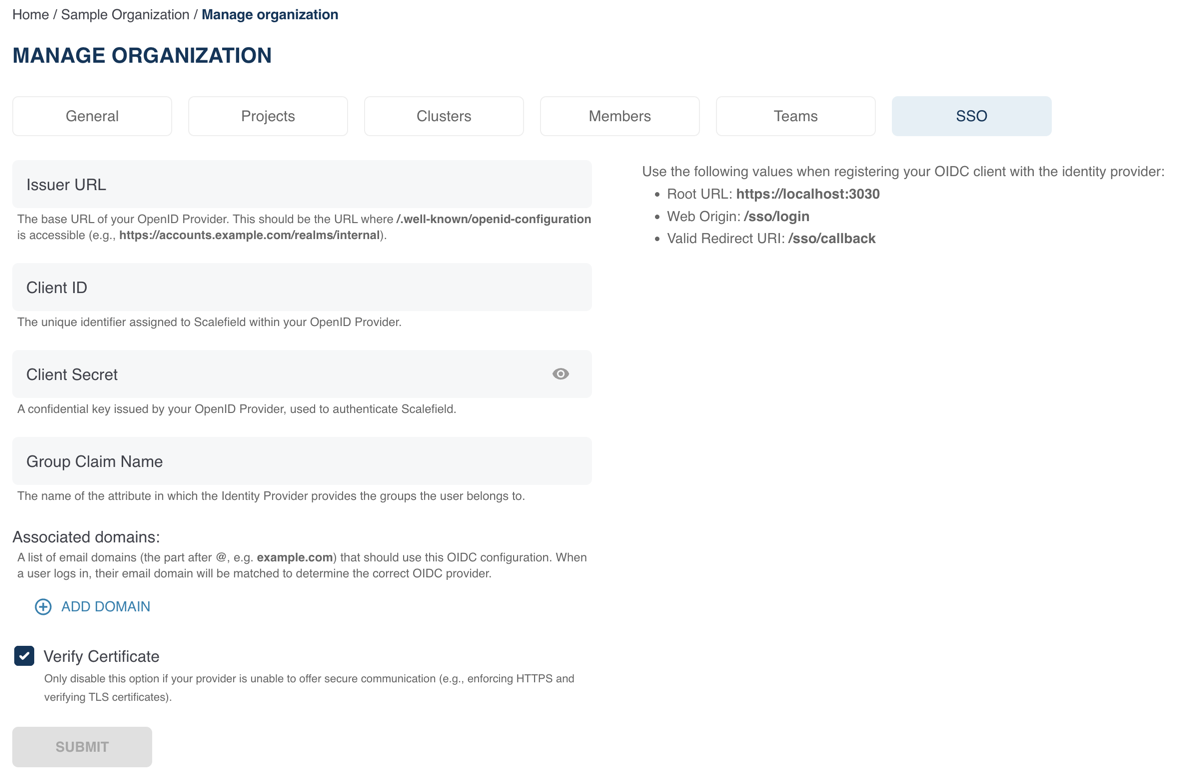
- Issuer URL: Endpoint URL of the OIDC provider.
- Client ID: Identifier used to register Scalefield with the OIDC provider.
- Client Secret: Secret associated with the Scalefield client application.
- Group Claim Name (optional): Name of the custom group claim configured in your OIDC provider. This claim should include all groups to be used in Scalefield.
- Associated Domains: List of email domains (portion after
@) used to associate users with the organization during login.
If your OIDC provider uses a self-signed or untrusted certificate, disable Verify Certificate.
Confirm that the Web Origin and Redirect URI displayed match those configured in your OIDC provider.
Click Submit to save the configuration.
Once an organization owner configures OIDC, the Continue with SSO button appears on the Scalefield login page.
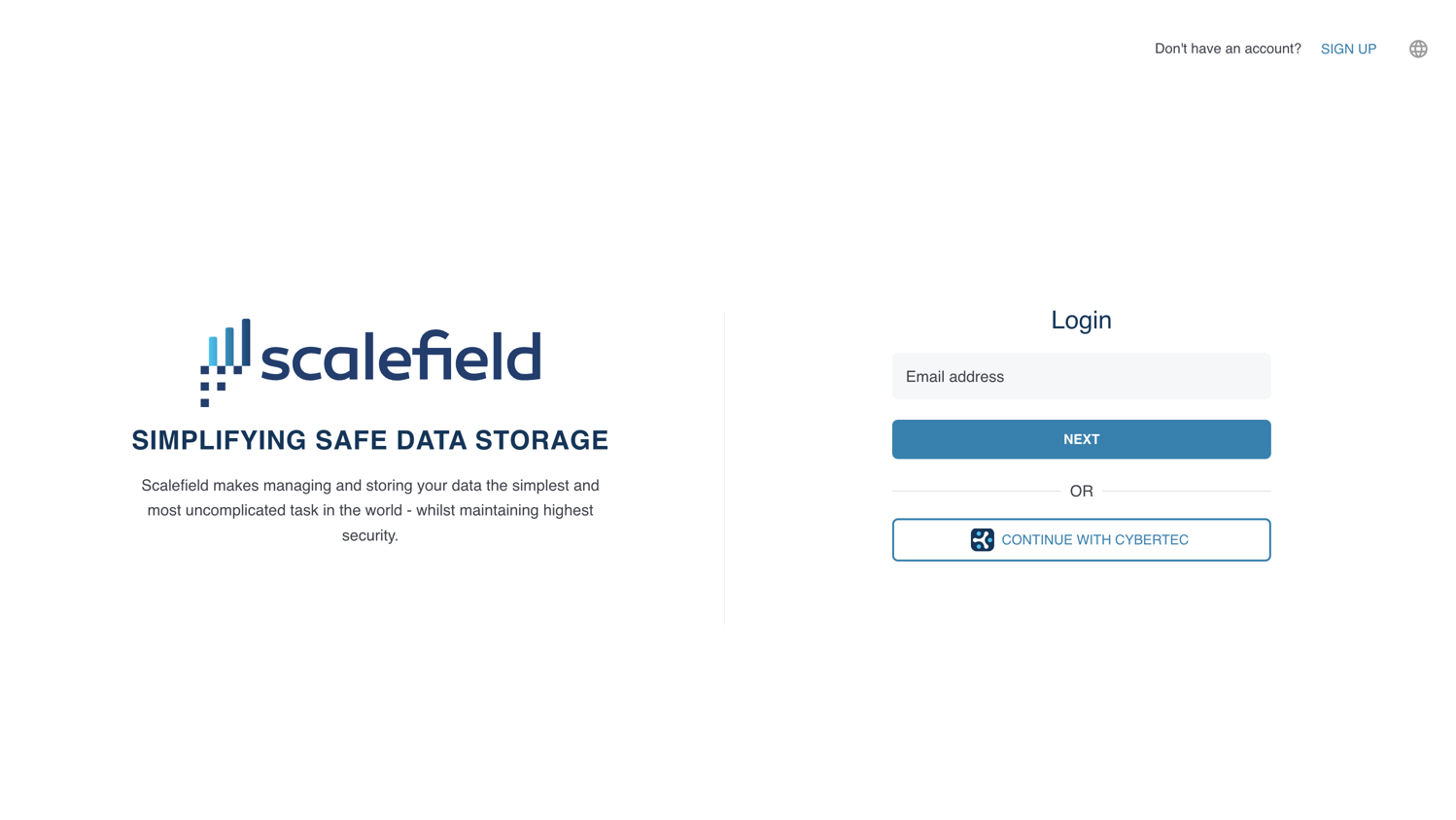
Clicking this button redirects you to the configured OIDC provider for authentication. After successful authentication, you are redirected back to Scalefield, granted a user session and automatically added to the corresponding organization.
By default, users authenticating via OIDC are added to the organization without any permissions and cannot access resources.
To grant access, you can associate OIDC groups with teams in Scalefield:
- Go to the Teams tab within your organization.
- Edit an existing team or create a new one.
- Click Add Groups in the top-right corner.
Scalefield will suggest known OIDC groups based on previously logged-in users. You can also manually enter group names using the free-text field.
Once a group is added to a team, all users in that group automatically inherit the team’s permissions.